


At the top of the Revenue-Expenditure model is space for its name and other details, and the name or initials of the analyst. You can create a model dedicated to a particular site, but you can also create a model representing a site type - to be stored in a library of Revenue-Expenditure models and retrieved when the need arises (see section 5.5).
To get here use either the Go-To available under either the Edit or View menus, or the Rev-Exp tab at the bottom of the screen.
The most appropriate name for a Revenue-Expenditure model, and the descriptive details in the top section, may depend on its nature. If it is for a single coupe only, it could take the name of that coupe; but if it for a site type, you may wish to have a more descriptive name. Details, likewise, should be those most useful for the task(s) envisaged.
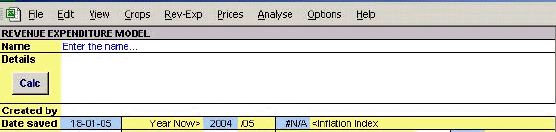
Whatever you decide, type in the name and details in the white space at the top of the model, starting at the left, and entering a line at a time, just as with the What-if screen details (see Section 2). In this case however the Details section does not have a word- wrap and must be entered a line at a time. Don’t forget to add your own name or initials.
Do not neglect to enter this information. As we work on a file we never imagine we can forget the details, but we do, all too quickly. And in any case others may later have to take up where we have left off.
You do not have to enter the Date saved; that is done automatically. In a new Revenue-Expenditure model, the date is the current date, but when you save the file it is fixed at that date, providing a helpful record for later use. Nor do you have to change the Year Now, which is read automatically from the Standard Years section of the What-if screen (see section 3.3).

It is necessary to enter three items of information about the land cost: the amount per hectare, the purchase year, and the percent of the coupe covered by the purchase (some of the land may have been owned already). If you wish to leave it out of the calculation altogether, leave (or re-enter) the zero in
the cost box (the default is zero). Overheads are not applied to land cost in this version of FIAP. Only a single purchase date is permitted for any coupe; the default is Year Now, but you may alter this as necessary by typing in the correct year.
The rest of the Revenue-Expenditure model consists of three sections: operational costs, miscellaneous income, and grants. In a new model the sections are all quite small, but each can be expanded as much as may be needed for any analysis.
The first three columns of the sections for operational costs, miscellaneous income and grants are for details of jobs, etc., or any other notes you wish. It is primarily intended that what you enter in these sections will be for information only, having no effect on FIAP’s operation or calculations but, as often with spreadsheets, there is scope for flexibility. For example, you could enter unit costs in one of these columns, or the number of items to which the cost is to be applied (e.g. length of fence or numbers of plants), and a formula to work out the cost per ha to be entered in the “£/ha Cost” column (see section 5.4).
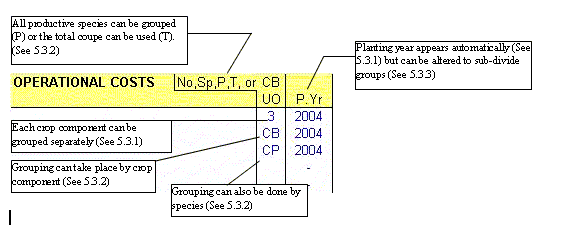
In the next two columns - the one headed “No, Sp P,T, or CBUO, and the one headed “P Yr - you link the crop components to the financial details to be entered in this model. There is much flexibility in what you may do, but some need for care in the way that you do it. There are three possibilities: dealing with each component separately, grouping them, and subdividing the groups. A little practice with these various possibilities, with recalculation set to automatic (See section 1.3.6), will soon show how the system works.
The simplest procedure is to enter the details for each crop component (1. .20) separately. You can enter all the costs for crop component 1, followed by all the costs for crop component 2, and so on. All you do in this case is to enter the appropriate number of the crop component, as listed in the What-if screen (l..20), in each cell of the column labelled “No, Sp P,T, or CBUO”.
What then appears (after recalculation) in the column to the right (P.Yr) is the planting year of that component, read automatically from the What-if? screen. FIAP uses that year to allocate the costs correctly in the cash flow; it also uses the area of that component to adjust the weight of those costs in the total, as explained in the “Net Costs” details in section 5.4.5.
If several of the crop components are planted at the same time with identical costs (etc.), it may be desirable to group them together - partly because they may be thought of as a group, and partly to save time and reduce the potential error of keying in multiple sets of data (though the various editing commands in the Edit menu may help). Two types of grouping are possible.
First, you can enter in the first column (CBUO) a single letter representing one of the four crop types, or the two totals:
• Productive conifers |
C |
• Productive broadleaves |
B |
• Productive total |
P (= C+B) |
• Unproductive species |
U |
• Open space |
0 |
• Total coupe |
T (= C+B+U+O) |
Alternatively, you can enter two letters representing a species. For example, if all the Sitka were planted together and had the same costs, but there had been several different yield models and as such were listed as separate components, you could group them together in the Revenue-Expenditure model by typing SS in the second (Sp..) column.
You can use either of these grouping methods for any financial item. Thus for those costs common to all you could enter “T”, whereas for those for a single component you could enter the number (1 ..20). The fact that you group components for, one cost does not mean that you have to group them for all, but it becomes very important to note clearly what you are doing in each entry.
The grouping you choose must have a common planting year. FIAP checks to make sure and, if it does not, the message “P.Yr?” appears in the third column instead of an actual planting year (after recalculation). If that happens, you must use the third method of grouping (section 5.3.3 below), or FIAP will refuse to calculate results, showing #NA in the years on the right of the Revenue-Expenditure model.
If the components in a group defined by the previous Option do not have the same planting year, it is necessary to subdivide them by entering a planting year in the third column (P.Yr) as well as the one- or two-letter group in the second column. For instance, if you were planning to plant the productive conifer (C) in three separate years, you could group them for cost (etc.) purposes by entering C in the first column and the appropriate planting year in the second. You simply overwrite the formula already in those cells with the planting year.
Having typed in a planting year in the third column, you may later change your mind and wish to restore the formula. The Formula Restore command is provided in the Rev-Exp menu for just that purpose. Place the cell pointer on the cell in question and select the command. You are asked to confirm that the current cell is the one to want to change, choose OK and the formula is restored.
There are some traps for the unwary in both of the above grouping options. You may forget to restore a formula as described above. Or you may change the planting year of a crop component, forgetting that you had grouped it with another. To provide a safeguard against these and other errors, the Verify command is provided within the Rev-Exp menu. This runs a series of logical checks on the formulae in these two columns, for instance checking that there is a formula in the second column if there is a number in the first. Select this command and choose what part(s) of the Revenue-Expenditure model you wish to check. Warning messages are displayed if anything wrong is detected.
In the costs section there are six columns to consider for entering, financial data, but only five in the other two, because overheads are not applied to miscellaneous income and grant items. All costs and revenues are entered on a per ha.., not per coupe basis.
Enter the amount of costs, miscellaneous income or grants in the column headed “£/ha Cost” (or Receipt or Grant). Enter all amounts as positive figures, even though costs are outgoings and the other two are receipts.
With care, you can enter formulae which result in the amount of a financial item. For example, for fencing you could calculate the cost of fencing the coupe with 1106 metres at £2.56 per metre and enter the cost per hectare (i.e., 2813.36/coupe ha- as all costs and receipts in the revenue-expenditure model are per hectare, all total costs must be divided by the total area of the coupe). You will only see it to the nearest integer, but the exact figure will be used in calculations. But instead you could enter 1106*2.56/coupe ha directly in the cell. The answer will be shown as before, but the formula remains in the cell, allowing you to alter it later if you wish.
Yet again, you could enter the length or the unit cost (or both) in the notes section and make the formulae refer to those cell references, making later alteration easier, If you do enter formulae, either in the notes or directly in the cost cells, for your own benefit make sure that your notes show clearly what you have done.
FIAP allows you to enter single financial items or annuities (the same amount paid or received in more than one consecutive year), and it allocates the costs to the appropriate year(s) in the annual cash flow. FIAP assumes that the duration of any annuity is inclusive, i.e. if you say that a cost of £100 runs from P+2 (where P is the planning year) to p+7, FIAP treats it as six costs, one each in years 2, 3, 4, 5, 6 and 7. To do this enter =2 in P±/Yr From and =7 in P±/Yr To. The entries must be prefixed with an equals sign (=) although this disappears once the cell is entered.
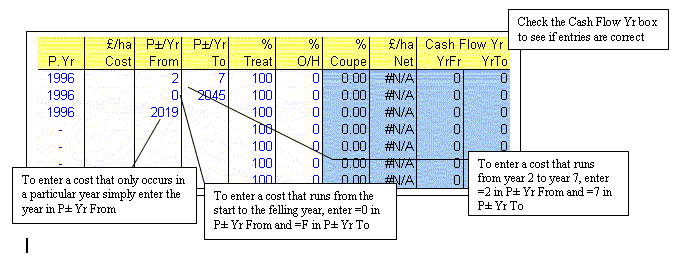
P± years are convenient for thinking about the cash flows for individual crops, but for the coupe as a whole you may also want to identify financial items in real time, rather than with a P± year. For instance, you may know that some event will take place in a given year - perhaps special centenary celebrations in the year 2019. FIAP allows you to enter P± years or actual years, thus rooting financial items in relative or real time. The equals sign is not required in this case.
A more common example may be that you want to specify that certain costs will be incurred in the year of felling, whenever that felling may take place. FIAP allows you to do this by entering =F in the P±/Yr From column. What appears when you do so is the actual year of felling for the coupe. “F” is a range name which has been given to the cell in which the year of felling is entered, and by entering =F in this column, you enter whatever is the felling year. You can enter F-1 for the year before felling, or =F-5 for five years before felling, and so on. You must precede the F with an equals sign (=) or it is treated as text.
Even though you can create columns with two quite different types of number in it (P± years, real time years) FIAP can distinguish between them and will treat real time years as dates, not adding them to the planting year as it does with P± years. It can handle single items or annuities, with either the start or the finish specified as a P± year or an actual year. However, such mixtures of time measurement are much less easy for users to follow, and they be used with caution (if at all).
The year “P±/Yr To” should obviously be greater that the year “P± From”. If it is not, FIAP treats the cost (etc.) as a single item incurred (or received) in the year shown in the “P±/Yr From” column.
You may specify the percentage treated of the crop component (or group). For instance, weeding or beating up may be required on only a part. of any component (or group). The default is 100%, but you can overwrite that figure. Enter percentages as whole figures (i.e., enter 10% as 10, not 0.1, and don’t type the % sign after the number).
For operational costs only, you can add a percentage to all or some costs for overheads. The default is zero, but you can overwrite that figure. The figure you enter will be the percentage amount by which the cost in increased. For instance, if you enter 50 against a cost of £100, the cost will be increased by 50% to £150 - as long as Y(es) is entered in the Overheads % box in the W screen. Enter percentages as whole figures (i.e., enter 10% as 10, not 0.1, and don’t type the % sign after the number).
In the column headed “% Coupe”, FIAP looks up the proportion of the whole coupe represented by the crop component or group for each financial item. In the next column (£/ha Net) it combines this figure with three other factors to reach a net cost or receipt from the figures you have entered: the percentage treated, the overheads percentage, and the inflation factor.
In the final two columns of the Revenue-Expenditure model, FIAP adds the P± years to the appropriate planting year, or uses the real time years already entered. These columns - Cash Flow years YrFr(om) and YrTo - show the years of the final cash flow to which the financial items will be allocated, and thus provide a useful check.
When FIAP is first loaded the sections of the Revenue-Expenditure model are quite small, but they can all be extended for additional data.
Any of the sections of the model can be extended to make room for more data using the Extend command in the Rev-Exp menu. When you select this command, you are prompted to specify how many extra rows you want to insert (the default is 5), and these are added to the end of the section of the model where the cell pointer is currently placed.
You may at times wish to insert an extra row within a batch of data, rather than a block at the end of a section. The Insert command in the Rev-Exp menu provides that function. Place the cell pointer on the row where you want. to make the insert before invoking this command.
There may be occasions when you want scrap your current revenue-expenditure entries completely and start again. That is possible using the Clear command in the Rev-Exp menu. It clears all data, notes, descriptions, etc., and resets formulae and values to their default levels, but does not remove the rows themselves.
The Delete command in the Rev-Exp menu, by contrast, removes unwanted rows completely. It offers two options. First, the removal of a block of rows at the end of the section of the model in which the cell pointer is placed. The default number of rows is 5, but you can specify any number up to the total number of rows within a section less one - you cannot delete a whole section. The other option within the Delete command is the removal of a single row within a block of data. It is the reverse of the Insert command. All data in any rows deleted are lost.
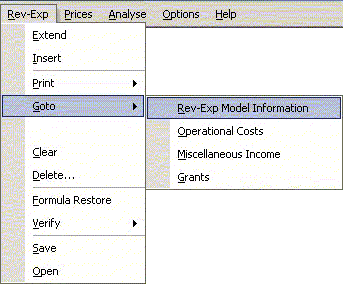
With large coupes the Revenue-Expenditure model may become very long. To avoid too much use of the Page Up and Page Down keys, or the slide on the vertical scroll bar which all too easily overruns, a GoTo is provided in the Rev-Exp menu. This will take you to the start of any of the four sections of the Revenue-Expenditure model you choose.
When you save FIAP using the Save or the Save As commands, from the File menu, everything is saved. But you can save parts of the Revenue-Expenditure model separately. For instance you can create Revenue-Expenditure models typical of various sites or conditions, to be stored in a library for
use in later analyses. Only one section of the model can be saved to each file: costs, or miscellaneous income or grants - not the site information, nor land cost, as these are almost certain to be altered in any new analyses of which retrieved data are to form part.
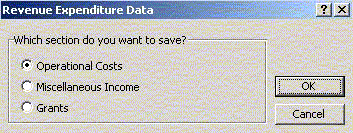
To save a section of the Revenue-Expenditure model, select the Save command from the Rev-Exp menu. You will be prompted to specify which part of the model you want to be saved, and on clicking OK that part will be saved.
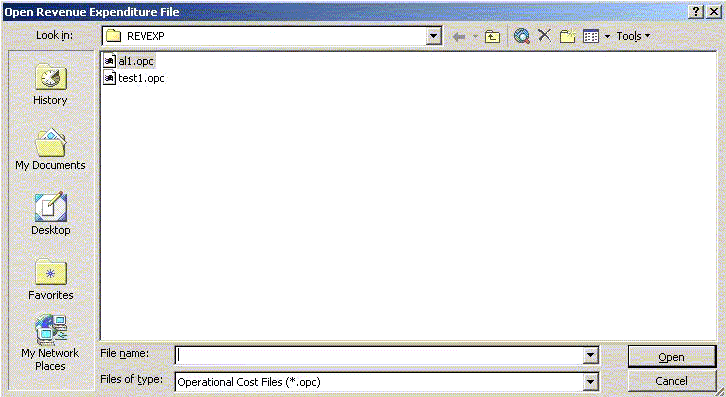
To retrieve a file of data and add it to a current Revenue-Expenditure model, select the Retrieve command from the Rev-Exp menu. You will be prompted to specify which part of the model that you want to retrieve, and then presented with a dialog box from which you can select the file to retrieve. There are three types of file each corresponding to the three sections of the Revenue-Expenditure model: operational costs end with .opc; miscellaneous income ends with .mis and grants end with .gra. On making the selection, the model will be expanded by the requisite number of rows and the stored data added to the end of the section. Adding it to the end of a section ensures that existing data are not lost, but it may be irksome if you have just cleared a model and are calling up new data. In those circumstances it is more convenient to delete unwanted rows before retrieving stored data.
To reduce the possibility of error, neither linkages to crop components (individuals or groups) nor planting years are retrieved, because subsequent analyses are likely to use different components and years. The “No, Sp, P,T, or CBUO” column is left blank, and formulae are reinstated in the “P.Yr” column. Links with crop components must be systematically re-established for subsequent analyses. What are retrieved are all the notes, the financial items and timings, and the two percentages for treatment and overheads (costs only). The various other cells in the extended columns are filled with appropriate formulae.
If the data were saved in a previous year, on retrieving them you will .be asked whether you want to leave the figures as they are, or update them for inflation. If you choose to update them, the amounts themselves are changed by a factor based on the current year and the year of the retrieved data. If you choose not to update them, you can always go through and amend the costs or other items as you think fit.
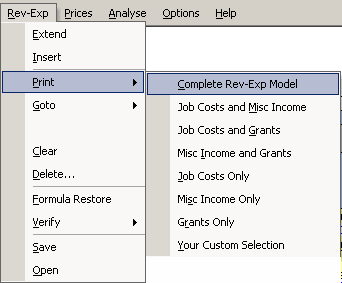
You can print off all or parts of the Revenue-Expenditure model using the Print Commands provided in the Rev-Exp menu. Seven possible selections are offered, plus the option of making your own selection. If you choose the latter option, you are presented with the same dialog box as in the Print User command in the File menu. You can find out more about printing your own selections in section 9.
