


FIAP can accommodate up to 20 components in a single analysis. These may be productive conifers or broadleaves, unproductive species or open space. FIAP does not hold in memory all the 1000+ yield models available; you have to specify which of them you want to work with in any analysis and then instruct FIAP to load them. You can later remove, add or substitute crop components, if you wish.
Crop components are entered on the What-If screen. To get here from any other part of FIAP use the tabs at the bottom of the screen or the GoTo command available under either the Edit or the View menus. You can use the Crops Setup command from the Crops menu to set Up the screen for you in a convenient way that enables you to view all 20 possible components at once on a standard monitor. Move the cell pointer to the first row of the crop component area ready to enter the requisite details.
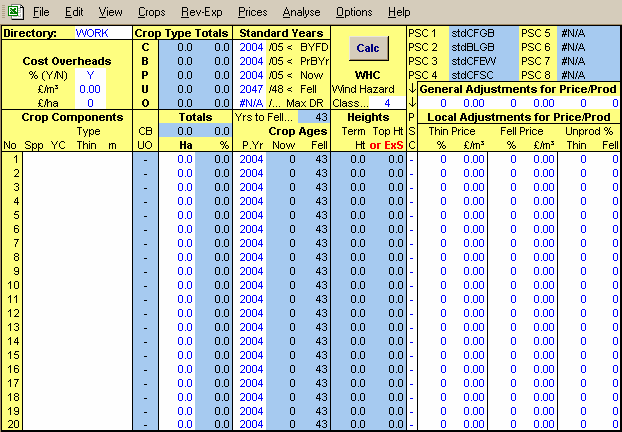
The only productive species you may enter are those for which there are yield models, as follows, using the standard FC 2-letter code. You can type in upper or lower case. If you don’t know the species for which there are available models, you can use the Query option in the Crops menu command to remind you. See section 7 for more details on the yield model database.
Conifers: CP, LP, SP, NS, SS, EL, JL, DF, GF, NF, RC, WH
Broadleaves: BE, OK, P0, SA, NO (SA = Sycamore, Ash or Birch)
If you have recalculation switched to Auto (See section 1.3.6) as you begin to enter these details, or when you recalculate during this part of the work, a warning notice appears in place of the crop components heading, reminding you that the yield models have not yet been loaded for the crops you are entering (see section 4.6). This notice disappears when the yield models you have loaded match the details you have listed.
You can have crop components which are unproductive species or open space. To enter au unproductive component, type something like “UC” or “UB” - the first letter must be “U”. For open space, type “Open” - the first two letters must be “Op”. The entries can be in upper or lower case, but they must be in the first (Spp) column. No yield models are loaded for components labelled in this way, but you can relate costs to them.
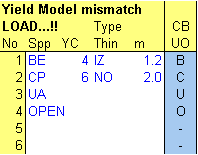
When you enter the species, or type UC, UB or Open in the species column, FIAP notes (after recalculation) which of four crop types you have entered and shows one of four letters in the column headed CBUO.
• Productive conifer (C) |
• Unproductive species (U) |
• Productive broadleaf (B) |
• Open space (0) |

For each of the productive crop components you must also enter the yield class (YC). You do not have to enter the YC for unproductive species because no yield model is loaded for them. To enter the yield class, type in the number. If, having selected the species, you are not sure for what yield classes there are yield models, the Query command in the Crops menu will show you. Place the cell pointer on the crop component about which you want information before you invoke this command. Alternately you can use the YM Database tab at the case of the screen If you enter an inappropriate yield class you will be given an error message and asked to try again.
For each of the productive crop components you must also enter the type of thinning for the desired yield model. Again, you do not have to enter this for unproductive species because no yield models are loaded for them.
The seven thinning types are abbreviated to two letters in FIAP (this is because of the 8-digits restriction in yield model filenames imposed by MS the other six digits being taken up by the species, yield class and spacing). The first letter denotes the type of thinning, and the second the delay in first thinning, as follows:
Thinning type: |
I = Intermediate; |
C = Crown; |
L = Line; |
NO = No Thin | ||
Delay: |
Z = Zero delay; |
F = Five year delay; |
T =Ten year delay |
|||
For example, intermediate thinning with no delay in first thinning is denoted by “IZ”. The exception to the above system is No-Thin models which are represented simply by “NO”. You may use upper or lower case.

If, having selected the species and yield class, you are not sure for what types of thinning there are yield models, the Query command in the Crops menu will show you. Place the cell pointer on the crop component about which you want information before you invoke this command. Alternately you can use the YM Database tab at the case of the screen. Again if you select an inappropriate thinning type an error message will appear requesting that you try again.
For each of the productive crop components you must also enter the initial spacing in metres (m). You do not have to enter this for unproductive species because no yield models are loaded for them.
If, having selected the species, yield class and type of thinning, you are not sure for what spacings there are yield models, the Query command in the Crops menu can be used as before or the YM database screen can be reached via the tabs.
You cannot load the yield models until you have entered all four sets of data for each of the productive crop components. You do not need to load them before you continue with the rest of the crop component data (see Section 4.8), but you can do so if you wish. You must load them before you undertake any analysis involving timber receipts.
You load yield models with the Load/Verify Yield Models command in the Crops menu. Selecting this command enters all the appropriate yield models. FIAP first checks that there is a yield model for the data you have entered on each row, and if there isn’t it stops and displays a message, leaving the cell pointer on the row where the data needs checking. You can use the Query commands in the Crops menu to help correct the entries. Having made the necessary corrections, use the Load/Verify Yield Models command again.
If, before loading the models, you want to make sure that there is a yield model corresponding to any of the sets of data entered, the Query command in the Crops menu will check it for you or again you can use the tabs to get to the YM database screen.
When FIAP has loaded all the yield models specified, it also protects the four columns of data - and colours them blue as a visual reminder. This is to prevent you later altering anything by mistake. As a safeguard, FIAP will not calculate results if there is a mismatch between the models specified in the crop components section and those loaded for analysis. A message indicating such a mismatch appears not only above the crop components box (see Section 4.2), but also to the left of the results section, and #NA appears in all the results. You are prompted to use the Load/Verify Yield Models command in the Crops menu to help locate the error(s). This is particularly important if you have changed things after initially loading some Yield models.
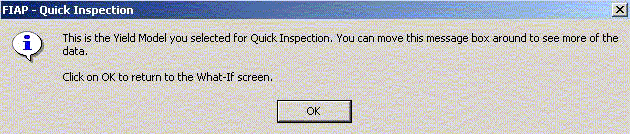
Nevertheless, if you want to check that any of the yield models have been correctly entered, the Quick Inspection command in the Crops menu will help. Place the cell pointer on the crop component you want to check, and this command will take you to the yield model for that component. You will see both what you selected (above the green line) and the title of the model (inside the green box). The two should be the same. Rarely will the green boxes be completely filled with data, because they have to be large enough to accommodate the longest of the yield models (oak). You can move the dialogue box around by click and dragging on the green area at its top. When you are satisfied, click OK or press Enter to return to the What-if screen.
If you want to delete a component from the list, you can use the Component Erase command from the Crops menu. Place the cell pointer on the component you want to erase before you invoke this command, having first used the Unprotect Crop List command. FIAP will check that you do want to make the deletion; click OK to confirm. FIAP removes both the data on the crop components list and the yield model (if any). Erasing a component leaves that space blank, and you can later enter a new crop there.
If you want to add a new component to the list, you can do so in any empty space within the range of 1 ..20. You can also substitute a new component by overwriting existing data. Make sure that the space is unprotected (use the Unprotect Crop List command from the Crops menu if necessary). Enter or alter the data as required, and then use the Component Add command from the Crops menu to remove the existing yield model and/or load a new one. Use the Quick Inspection command to check it if you wish.
When you have made all the necessary changes it is wise to protect the details of all the crop component on the What-if screen, to avoid the possibility of altering them by mistake. This is your record of what yield models are being used in the analysis, and it is important that this record is correct, although FIAP will not calculate results if there is any mismatch between the recorded crop components and the models loaded. The data are protected automatically when the yield models are first loaded, but you have to reprotect them after adding or deleting a species. The Protect Crop List command from the Crops menu will protect the information; the Unprotect Crop List command unprotects it again for fresh alterations.
You must enter the area of each crop component - productive, unproductive or open space.
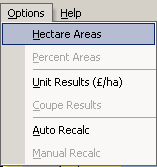
You can enter the area in hectares, in which case FIAP adds up all the components to give the total coupe area. Or, if you prefer, you can enter the total coupe area and specify individual areas by percentages of that total. Whichever method you choose, the other item of information (areas or percentages) are shown beside the figure you enter when FIAP is next recalculated. Both figures are shown to one decimal place, but where the figures are calculated they are actually held to 18 significant digits. To switch between the two methods use the Hectare Areas and Percent Areas commands in the Options menu. The method that is currently being used is blanked out.
If you choose to work with percentage entries, you must make sure that the percentages add to exactly 100%. FIAP will refuse to calculate summary results unless they do, and will display the warning “!!! Areas <>100% !!!“ in the top left of the summary results box. The need to make figures add to 100% may cause problems if you enter hectares for some components and then switch to percentages, because the percentages which had already been calculated from those areas may be too much greater accuracy than the nearest 0.1% shown on the screen. You may have to round those percentages manually to make the total add to 100%, but if this proves too troublesome, switching back to entry by hectares will make the percentages add to 100%.
The default when FIAP is first loaded is entry by hectares, and that Option menu choice is dimmed because you cannot select it (it is already selected). You can choose Percent Areas, in which case the Total Ha cell and the column of percentages in the What-if screen will be unprotected and turned white, and the column of areas will be protected and shaded blue. If you select this option and you have not yet entered any areas, FIAP will enter 1.0 in the area total box, but you can overwrite that at any time (while using this option). As mentioned above, the choices in the menu are altered to reflect what is available.
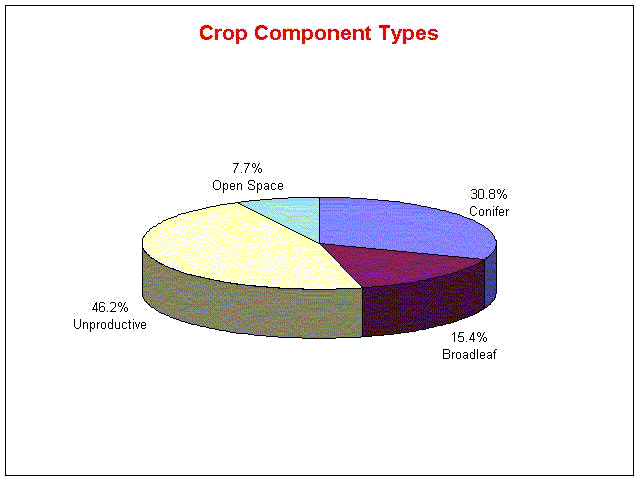
The area and percentage distribution of the four crop types is shown automatically above the area and percentage columns (recalculate if necessary). The crop type analysis can also be shown in a pie chart, as long as there are at least two types of crop component (C, B, U, and 0). Select Graph Results, then Crop Component Types from the Analyse menu.
You must enter the planting year for each crop component - and this must be done for open space as well, silly though that may sound. The planting year is used for various analytical purposes, one of which is to allocate costs to correct years. As open space may well have costs attributed to it, the “planting” year provides the necessary reference point. The default entry for all components is Year Now.
FIAP shows for each crop component the age now (which will be negative if the planting year is after Year Now), and the planned rotation age of each crop component. Recalculate if necessary to display these figures. (A coupe cannot be thought of as having a rotation, unless all its components are planted in the same year.)
Traditionally, prize-size curves has been the general name given to lists of timber prices for a range of tree sizes, but strictly a curve is a line on a graph drawn from figures in a schedule. Schedule is the proper technical term, but the traditional name (and its abbreviation PSC) is more familiar.
FIAP contains four standard long-term PSCs prepared by PC, which are suitable for long-term planning decisions. You can view these by selecting GoTo in the Edit or View menus and choosing PSC’s or using the tabs. They are described in more detail in section 6. What is shown are the actual prices used in the current analysis, i.e., updated for inflation to the price base year selected.
1. StdCFGB - Standard conifer prices for Great Britain.
2. StdBLGB - Standard broadleaf prices for Great Britain.
3. StdCFEW - Standard conifer prices for England and Wales.
4. StdCFSC - Standard conifer prices for Scotland.
As a default FIAP sets the PSC automatically to 1 for all productive conifers and 2 for all productive broadleaves, but you can use others. Place the cell pointer on the cell of the PSC column where you want to make the change, type in the number of the PSC you want to use, and press Enter. You can change the PSC as often as you want, or you can reset the whole column of cells to react automatically to the default settings (Variables Reset command in the Analyse menu).
Besides these standard prices, there is space for four more price-size schedules (or curves) which you may construct yourself to reflect local conditions. The prices current in FIAP are shown towards the top right of the What-if screen. If one or more of the spaces shows NA, that means that the price-size schedule of that number is not yet available. For details of how to add new price-size schedules to those currently available, see section 6.
Whatever price-size schedule(s) you include in the analysis for each of the crop components in the What-if screen, you may increase or decrease the prices for each component in either or both of two ways - by a percentage or a sum per cubic metre. Moreover, you can make these adjustments individually using the Local Price Adjusters, or you can alter all prices together by using the General Price adjusters. All local and general price adjusters in these columns are initially set to zero but you can overwrite any of the figures. To decrease a price, enter a negative figure.
A percentage increase or decrease applies a proportional change to the entire range of prices. E.g., if you enter 10 to the column headed Thin %, you increase all thinning prices by 10%. Any negative prices in the price-size schedule will be made 10% more negative; positive prices will be increased by 10%. A per cubic metre price change will add or subtract an absolute price per cubic metre to or from all prices equally. Local and general price adjusters have equal weight. Thus an increase of 10% in general prices would be offset. (for that component) by a decrease of 10% for a single component.
In this version of FIAP, productivity can be handled differently from normal yield-model based analysis. It has been normal to reduce predicted volumes by, say, 15% to allow for roads and rides and open spaces. You can follow that practice in FIAP, but it is possible also to treat such unproductive areas as separate components with their own specified areas (and costs, etc.). In this case there may be no need to reduce the volume predictions for the productive crop components, and all local and general productivity adjusters are set to a default of zero.
However, for extra flexibility the opportunity remains to reduce crop productivity by a percentage if required, over the whole coupe or for each component individually, and for thinning or felling or both. You cannot increase the productivity to more than 100%, and to avoid potential error, FIAP treats any figure entered in these columns as a reduction in productivity, whether entered as a positive or a negative. Local and general productivity adjusters have equal weight. Thus a reduction of 10% in general productivity would be doubled (for that component) by a decrease of 10% for a single component.
If you enter 100 in both the thinning and felling cells for any productive component, FIAP records that component as unproductive (U) in the crop type analysis (see section 4.2).
