


The yield model database contains the file names of the yield models. The file names are made up of four parts; the species name, the yield class, the thinning regime and the spacing. It is important to get the 4 parts exactly right in the What-If screen in order to successfully load the data from the yield-model sub-directory. The YM Database was designed to ease this process and the Yield Models screen allows detailed examination of selected Yield models. Both screens are accessible through the tabs at the base of the screen or through the Goto command in the Edit and View menus.

It can be seen across the top of screen in the blue section are the column titles Spp, YC, Thin and m, and next to these are boxes containing arrows. These arrows are to help you select what you want rather than having to use the scroll bar on the right hand side. If you click on the Spp arrow you are shown a list of all the species available. If, for example, you select NS (Norway Spruce) you will be shown all the NS yield models. If you then select 20 from the YC arrow you are shown all the NS yield class 20 models (all 18 of them). Thin and m can be selected as well.
If you want to get back to the whole database, select All from the arrow menus for each column.
If you see the Yield model you have in mind click on it using the mouse (it doesn’t matter which one of the columns) and then select Copy Yield Model to Croplist from the Crops menu to transfer the model across to the What-If screen. It will be transferred to the first available space in the crop components section. You can then select another model if you wish. Remember that the models themselves will still have to be loaded using the Load/Verify Yield Models Command from the Crops menu from the What-If screen.
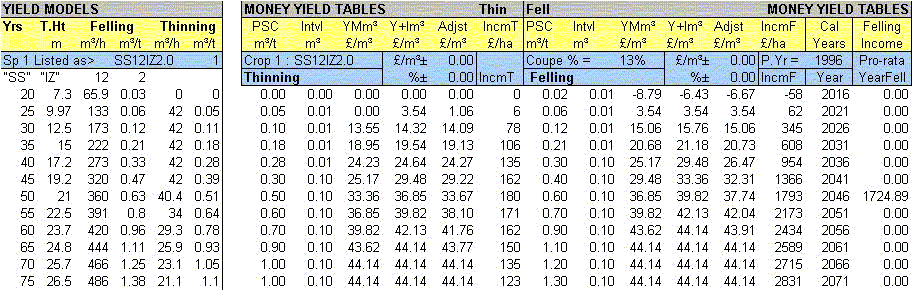
This screen simply allows you to examine in detail Yield models that have been loaded into any of the crop components. You cannot enter any data or change anything on this screen.
