


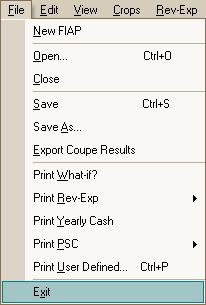
Housekeeping is opening, closing, erasing or saving files, or exiting from FIAP. The following commands are provided in the File menu.
Make this selection if, having carried out some analyses in FIAP, you want to start afresh. You are prompted to consider whether you want to save your work first. If you select Cancel, the command is stopped.
This command enables you to retrieve an existing file for further analysis. It replaces the existing file, so a prompt appears asking if you wish to save the current file.
If you have changed anything since you last saved FIAP, you are asked if you want to save your work before the file is closed. After making your choice this command closes the current file, leaving you with a blank FIAP sheet.
If the file you are working on is new and has no name this prompts you for a name for the file. A default is offered but it is advisable to use one which gives some hint as to the data the file contains; FIAP files have the suffix .fia.
If the file already has a name it is automatically saved under that name.
It is a good idea to save your work frequently to avoid losing data should anything go wrong. When everything is working fine it doesn’t seem as if anything could ever go wrong. But swear boxes grow fat from attitudes like that. Save frequently!
Revenue-Expenditure data are saved in the RevExp sub-directory, PSC data are saved in the PSC sub-directory and results data is saved in the Coupesum sub-directory (all are within the PCFIAP directory); no choice is offered about these procedures. But choice is possible over where to save your FIAP files, i.e., the entire model containing all the data you have used for analysis.
As a default, FIAP files are saved in the WORK sub-directory within PCFIAP, but it may sometimes be more convenient to, have more than one sub-directory for storing such work - perhaps for different parts of the forest or region. In that case you can specify which sub-directory the work is saved in by entering its name (not the full path) in the appropriate cell towards the top left of the What-if? screen (see Section 3.1). Entering a name there does not create the directory; that must be done in MS-DOS, or in Windows using the File Manager within the Program Manager. The new sub-directory must be within the PCFIAP directory.
Rather than saving the entire file, you can just save the important results as a summary file. This is dealt with in section 8.9.
At any time you can change the name of the file you are working on, saving it under another name. You are presented with a dialog box showing existing file names in the current directory, and the file is saved in the current directory.
Finally, you can choose to exit from FIAP altogether. This returns you to the Windows Program Manager. You are prompted to save your work before leaving, but you can exit without doing so if you wish.
