


Most of the print commands are located in the File menu, but for convenience some of them can also be accessed under the Rev-Exp and Prices menus. There is also a Print Graphs command under the Analyse menu, and more about that command can be found in Section 8.7.7. The following are the commands in the File menu.
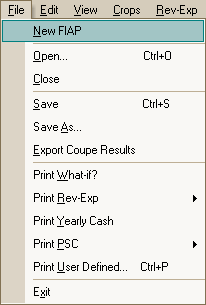
Printing commands are provided in the File menu, as summarised below.
The Print What-if command will include the summary results at the foot of the What-if screen on a single page.
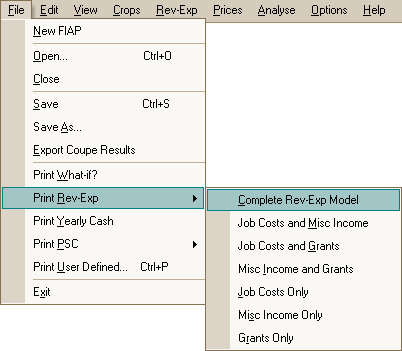
The Print Rev-Exp command allows you to chose how much of the Revenue-Expenditure screens you wish to print. For example, if you have not included grants or miscellaneous income in your analysis you may only want to print the site descriptions and the operational cost data.
The size of the Revenue-Expenditure screens may very easily run onto two or more pages. If it does, a footnote prints the page number, but no follow-on titles are provided on second and successive pages. This is because the potential variety in printing circumstances and requirements make it impossible to know in advance what follow on titles would be useful.
The Print Yearly Cash command will print the annual cash flows, on several pages if necessary. Where it flows onto two or more pages, the titles of the columns are repeated on second and subsequent pages.
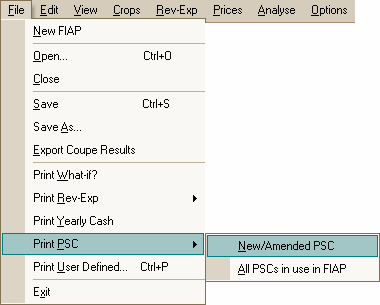
The Print PSCs command offers you a choice of printing only the new or amended PSC, or all those currently in use in FIAP. This command is also available from within the Prices menu.
The Print User command allows you to make your own selection of what to print.
You can print the whole worksheet or a selected range. To Print a selected range highlight it first by clicking and dragging with the mouse. Then choose the Selected option in the dialogue box. You can choose how many copies you want to print. You are provided with very considerable control over the appearance of the printing in the Page Setup option, and you can have a look at what it will look like by pressing Preview. It is wise to use preview, in case you selected special settings for a previous print job and have forgotten about them. (The standard FIAP print commands always begin by restoring the default page settings.)
A new printer can be selected using the Print User-Defined, then Printer setup in the File menu.
