


When you load FIAP, as detailed in section 1.2, an initial screen asks if you wish to create a new Appraisal or Edit an existing one. Depending on your choice you will be faced with a different procedure.
On choosing a new appraisal you are presented with a dialogue box requesting site name, site information and analyst name. The procedure for entering this information is dealt with in section 1.2. On clicking OK you are taken to the What-If screen.
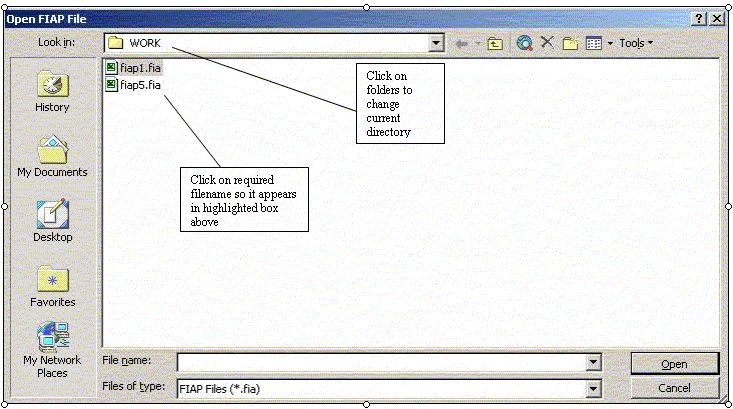
If you choose to edit an existing appraisal you are presented with a dialogue box asking for the file name. FIAP files appear with a .FIA extension and the default directory is shown onscreen. The current directory can be changed as usual by clicking on the folders. Select the filename required by clicking on it so it appears in the highlighted box above and click on OK when ready. The previous appraisal will now be loaded and you will be taken to the What-If screen.
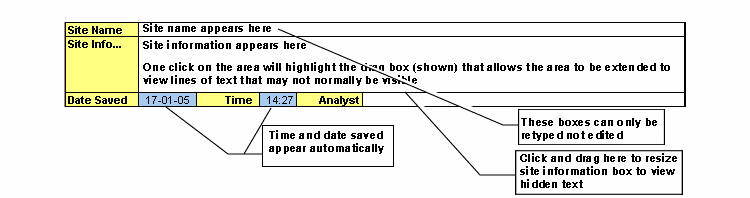
It is possible to alter site and analyst details once the package has started. This can be done on the What-If screen. To change a particular entry, position the mouse pointer over it and click. What happens now depends on. which of the entries you are attempting to modify. The editing procedure for Site name and Analyst is basic - simply click to on the left hand side of the text, re-type it and press Enter There is no way of editing what is already there. This should not be a problem as one would expect both names to be relatively short. One point that may arise is that the text appears in the first spreadsheet cell, which is quite small, and wraps over subsequent cells which are unusable. This has the effect that clicking too far to the right on the text will bring up a locked cell error message. See section 1.3.4.
The site details section may well require additions or changes over time and as such has been set up to allow editing without re-typing. Click once on the area to bring up the area frame and click again to position the vertical cursor which can be used to edit the text as required. When editing is finished simply click elsewhere on the screen. This area has been set up as a primitive word-processor so words will wrap across lines automatically and pressing Return will insert a new line. You may find that there is not enough room to display all the text you have written - to see hidden text, click once on the area to highlight the area frame, click on the mark halfway along the bottom of the frameline and drag the bottom border of the frame down until all the text is visible. This may now obscure other parts of the sheet so you may have to reverse the process once you have finished with the text.
It is important not to forget to enter these details for future reference. Memories fade far faster than we think they will, and others may have to take up where we have left off.
You do not need to enter the date or the time. When you start a fresh version of F these show the current date and time, read from your computer clock and updated each time you recalculate. When you save FIAP these are fixed as a record of when the model was saved, and they are automatically updated each time FIAP is saved.
